How to see the first message you sent someone on iMessage
In Messages, open the conversation and keep tapping the clock at the top of the screen: each tap loads an older batch, until you reach the first message your iPhone holds. There is no button that jumps to the start, so a long chat takes many taps. Misento, an iPhone app that helps you understand your relationships in iMessage, shows a chat's first four messages on one screen.
In Messages
- Open the conversation in Messages.
- Tap the clock at the top of the screen. The chat jumps to the oldest message it has loaded, and a spinner shows while earlier ones load.
- Tap the clock again once they appear. Each tap goes one batch further back.
- Stop when no spinner appears. The message at the top is the oldest one on your iPhone, and the date and time above it say when it was sent.
In a chat that goes back years, this takes a lot of taps, because each one only reaches the end of what has loaded so far.
With search
If you remember a word from early on, like a place, a plan, or how you met, search is faster.
- In the list of conversations, tap the Search field.
- Type the word. To limit it to one person, type their name and choose them under Messages with.
- Tap the result to open the chat at that message.
- Tap the clock from there to keep going back.
Search finds words, not dates, so it only helps when you know what was said. Searching iMessages by date covers dates.
In Misento
- Bring your messages into Misento, once, with a shortcut on iOS 26 or later or from a Mac.
- Open the conversation from the Contacts tab.
- Switch to the Analytics tab and scroll to Highlights at the bottom.
- Oldest Messages shows the chat's first four messages and the date it started.
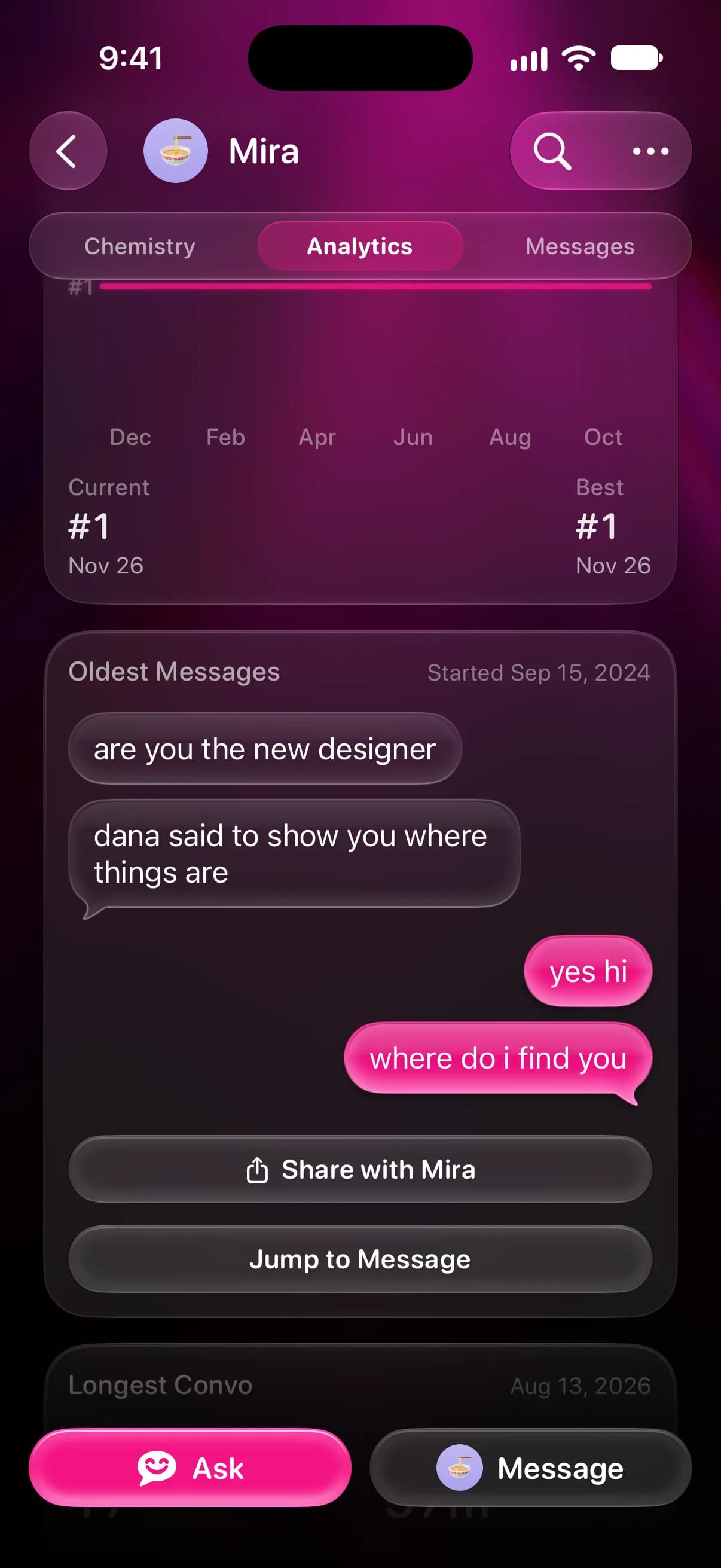
- Tap Jump to Message to open the conversation at that point and read on from there.
At the top of the same tab, Messages and History show how many texts you've sent each other and since when; counting your texts explains both. The Analytics tab is free, and it's part of Misento's iMessage analyzer.
Why older messages can be missing
Messages, and Misento on iPhone, can only go back as far as the history your iPhone holds.
In Settings > Apps > Messages, Keep Messages deletes messages older than 30 days or 1 year when set to either. Set to Forever, it removes nothing.
With Messages in iCloud on, every device signed in to your Apple Account has the same history, so a new iPhone downloads your old messages. With it off, a new iPhone has only what you restored from a backup.
Deleting a conversation removes it from every device that uses Messages in iCloud. For up to 30 days you can restore it from Recently Deleted, in the filter menu at the top of the conversation list.
Questions
Can I see the first message on iMessage without scrolling?
Not in Messages itself. Searching for a word from early on gets you close if you remember one. An app that reads your history, like Misento, can show the start of a chat directly.
Can I read my messages on iCloud.com?
No. iCloud.com has Mail, Photos, Notes and other apps, but not Messages. Messages in iCloud keeps your history in sync across your Apple devices, and you read it in the Messages app on each one.
How do I see the first text I sent someone?
Go to the start of the chat with either method above, then find the first message on your side. In Misento, Oldest Messages shows the first four messages as bubbles on each side, so you can see who wrote first and what they said.
Seif makes Misento.
Misento brings in your messages on iPhone with a shortcut, on iOS 26 or later, or from a Mac.
Get Misento for iPhone